One compressed picture, two orientation tags
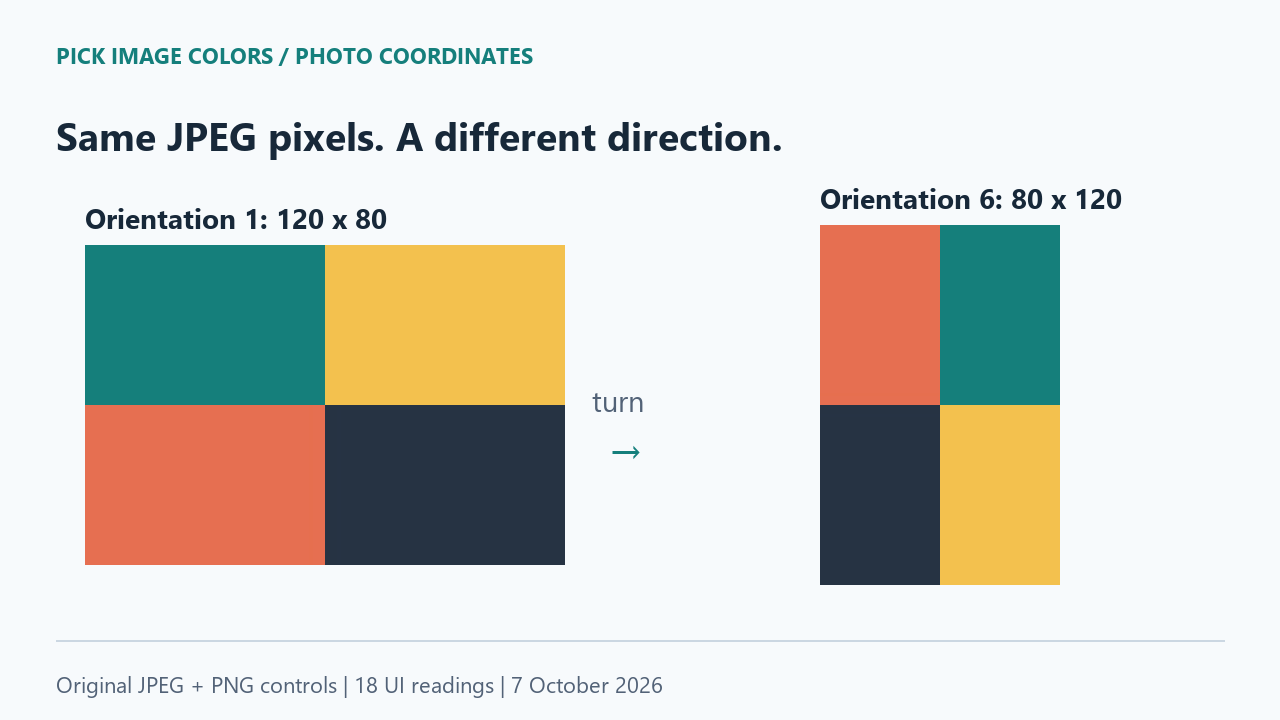
We drew four colored regions in a 120 × 80 image, encoded it once as JPEG, and inserted an EXIF Orientation tag into two copies. One tag is 1; the other is 6. The compressed image data is identical. We did not rotate the JPEG pixel data or compress it again while making the second file.
Before applying orientation, Pillow decoded identical RGB bytes from both files. Applying the second file's direction produced an 80 × 120 raster. We saved both oriented decodes as PNG controls. These PNGs retain the JPEG-decoded colors, not the flat colors used before JPEG compression.
Identical X and Y did not mean identical content
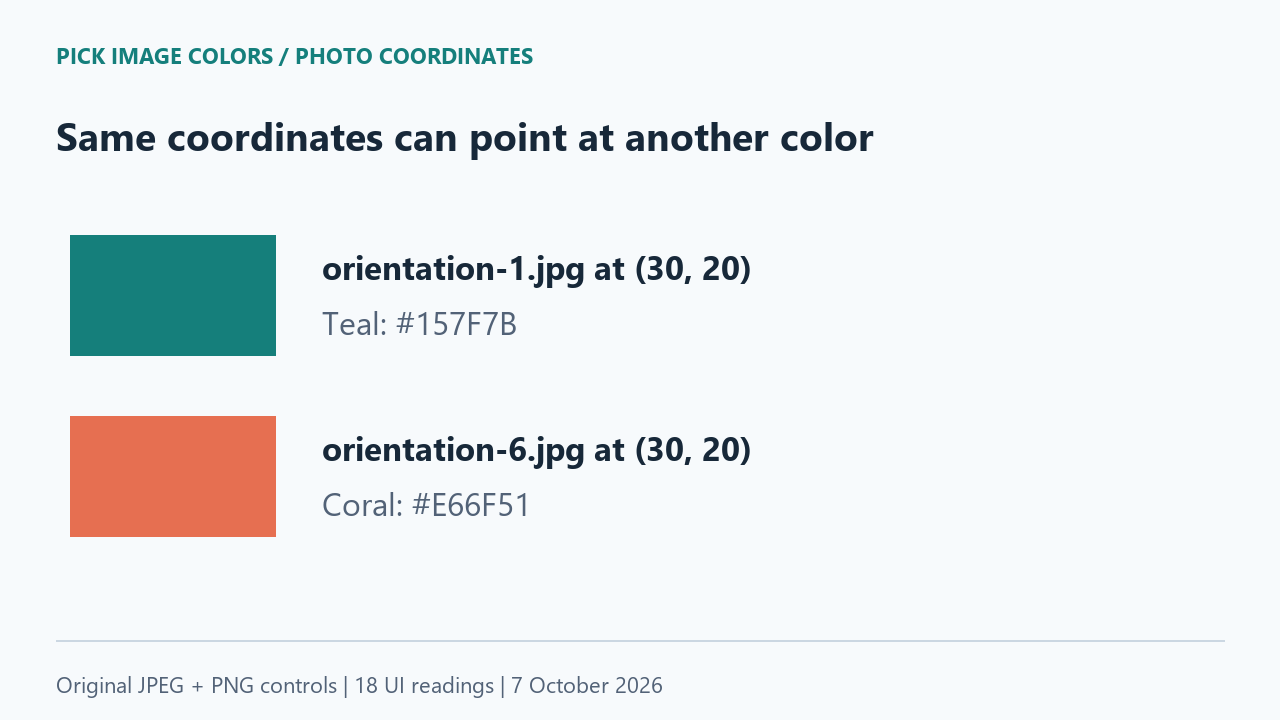
We uploaded each file to the public tool in the same Chrome session. Its interface showed 120 × 80 for orientation-1.jpg and 80 × 120 for orientation-6.jpg. At (30, 20), the first gave #157F7B and the second gave #E66F51. Those are different regions: teal before the turn, coral afterward.
We then sampled four interiors in each JPEG and the corresponding PNG controls. Each PNG reading matched its JPEG counterpart. Two extra clicks in the rotated JPEG checked the repeated coordinate and the mapped teal point, making eighteen UI readings in total. We recorded the displayed values, not colors taken from screenshots.
| File | Decoded size | X, Y | HEX |
|---|---|---|---|
| orientation-1.jpg | 120 × 80 | 30, 20 | #157F7B |
| orientation-1.jpg | 120 × 80 | 90, 20 | #F3C14E |
| orientation-1.jpg | 120 × 80 | 30, 60 | #E66F51 |
| orientation-1.jpg | 120 × 80 | 90, 60 | #263343 |
| orientation-6.jpg | 80 × 120 | 20, 30 | #E66F51 |
| orientation-6.jpg | 80 × 120 | 60, 30 | #157F7B |
| orientation-6.jpg | 80 × 120 | 20, 90 | #263343 |
| orientation-6.jpg | 80 × 120 | 60, 90 | #F3C14E |
| orientation-6.jpg | 80 × 120 | 30, 20 | #E66F51 |
| orientation-6.jpg | 80 × 120 | 59, 30 | #157F7B |
| orientation-1-decoded.png | 120 × 80 | 30, 20 | #157F7B |
| orientation-1-decoded.png | 120 × 80 | 90, 20 | #F3C14E |
| orientation-1-decoded.png | 120 × 80 | 30, 60 | #E66F51 |
| orientation-1-decoded.png | 120 × 80 | 90, 60 | #263343 |
| orientation-6-decoded.png | 80 × 120 | 20, 30 | #E66F51 |
| orientation-6-decoded.png | 80 × 120 | 60, 30 | #157F7B |
| orientation-6-decoded.png | 80 × 120 | 20, 90 | #263343 |
| orientation-6-decoded.png | 80 × 120 | 60, 90 | #F3C14E |
Follow the source point through the turn
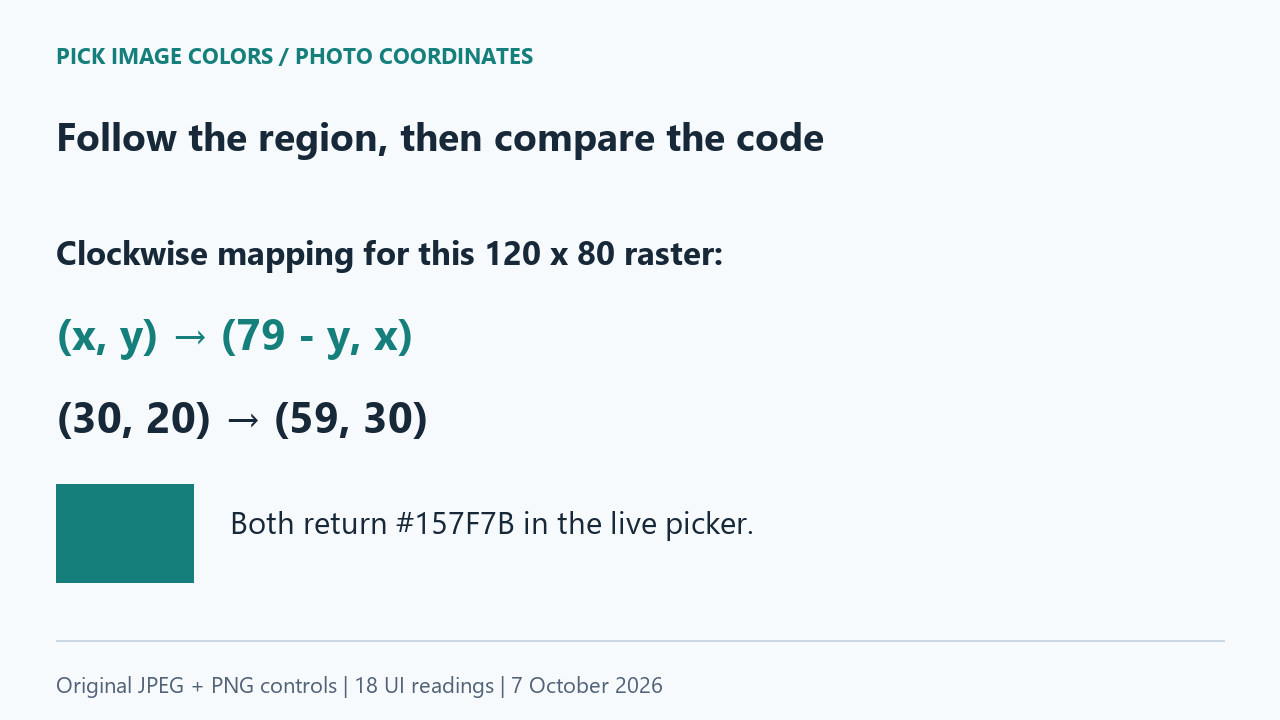
For our clockwise rotation, a zero-based source point (x, y) maps to (H − 1 − y, x), where H is the stored height. Here H = 80, so (30, 20) maps to (80 − 1 − 20, 30) = (59, 30). The minus one matters because the source rows run from 0 through 79.
We clicked (59, 30) in orientation-6.jpg and read #157F7B, matching (30, 20) in orientation-1.jpg. Separately, the downloadable script checks every pixel in the two file-level rasters: 120 × 80 = 9,600 mapped pairs. That exhaustive comparison is a Pillow calculation. The browser evidence is the eighteen interface samples, not an exhaustive browser-pixel comparison.
Why a browser can show different dimensions
MDN documents createImageBitmap as using EXIF orientation by default. Our native image-loading code first tries that API and has an image-element fallback. We did not instrument which branch returned the image; the displayed sizes and samples establish the observed result.
Pillow's exif_transpose applies the orientation and removes that orientation data. We used it for the PNG controls. A stored file's dimensions and the dimensions after orientation are therefore separate facts in this experiment.
Check a sideways reference without chasing the wrong pixel
- Upload orientation-1.jpg from the lab ZIP. Check the 120 × 80 display and sample (30, 20). Record the filename, dimensions and HEX together.
- Upload orientation-6.jpg. Confirm 80 × 120, then compare (30, 20) with (59, 30). The former is a repeated coordinate; the latter follows our original teal point.
- Upload the two decoded PNGs and repeat the four interior coordinates listed in the table. Keep each control paired with its matching arrangement.
- Run check-orientation.py with Python and Pillow to verify the identical unrotated rasters and the clockwise coordinate mapping. This check does not replace the browser clicks.
We tested one authored JPEG picture and one clockwise orientation in one Chrome session. Other EXIF orientations, mirrored photos, malformed metadata, resizing, editing software and other browsers need separate checks. We did not measure a general rate of upload errors or test camera models.
Questions about rotated-photo color picking
Did the orientation tag change my JPEG's colors?
In this fixture, changing the tag did not change the compressed image data. The matching regions kept their sampled codes. A changed code at the same X and Y was caused by sampling another region.
Which dimensions should I use for the sampling coordinates?
Use the dimensions of the decoded image shown by the tool. Our direction-tagged JPEG displayed 80 × 120 even though the stored raster was 120 × 80.
Should I rotate every uploaded photo again?
This test gives no reason to do that: the browser already applied the clockwise arrangement. Check the visible orientation first; an extra rotation would move the regions again.
Watch the coordinate comparison
Original diagrams with synthetic English narration.